
Local AI Server - Getting started with Software
Part 3

Where to Begin…

So here we are. The server is set up, Linux is running, and all my GPU drivers are installed. What do we do from here? This was the question that plagued me as I sat at my new setup. I knew I wanted to code, but where would I really even begin? The easiest answer to this question (and really any question ifykyk) was to defer work.
Ollama
Ollama is the first tool I ran into, and it seems to be a commonly used tool to run LLM models locally. Ollama packages different models like Llama, Mistral, and others behind simple CLI tools and an API. This handles downloads, updates, and your CPU/GPU usage for you.
Using Ollama is surprisingly easy (compared to other workflows I tried later). After installation, you can pull and run models with a single command. Here is what it looked like on my machine.
manavk@khanivore:~$ curl -fsSL https://ollama.com/install.sh | sh
<installation mumbo jumbo...>

manavk@khanivore:~$ ollama run gemma3
pulling manifest
<installation mumbo jumbo...>
sucess

>>> Hi gemma, please tell me briefly about your model
Okay, here’s a brief overview of me, Gemma:

I’m a large language model created by Google DeepMind! I’m “open-weights,”
meaning my underlying code is available for others to use, experiment
with, and improve. I’m really good at generating text – answering
questions, writing creative content, and more. However, like all language
models, I can sometimes make mistakes, and my knowledge has a cutoff
point.

Essentially, I’m here to help you explore the world of language AI! 😊
Beyond the CLI, Ollama exposes a local HTTP API that mirrors the shape of popular hosted LLM APIs, allowing you to point anything you need directly to your localhost.
Aside: One thing that I noticed very quickly is that Ollama and a growing list of LLM tools expose APIs that are pretty much identical to OpenAI’s. Let’s look at an example.
Here is an example request to gpt-4o mini:
curl https://api.openai.com/v1/chat/completions \
  -H "Authorization: Bearer $OPENAI_API_KEY" \
  -H "Content-Type: application/json" \
  -d '{
    "model": "gpt-4o-mini",
    "messages": [
      {"role": "user", "content": "Explain TCP vs UDP"}
    ]
  }'
Here is an example request to ollama:
curl http://localhost:11434/v1/chat/completions \
  -H "Content-Type: application/json" \
  -d '{
    "model": "llama3",
    "messages": [
      {"role": "user", "content": "Explain TCP vs UDP"}
    ]
  }'
As you can see, our request bodies are pretty much identical, with the only difference coming from a different base URL. This is definitely intentional. It seems as though (not surprisingly) OpenAI’s API is the “bread and butter” for LLM API’s and mimicking their format allows devs to make changes to their existing software easily. All they really need to do to switch from a hosted model to a local model is change the base URL.
My Qualms with Ollama
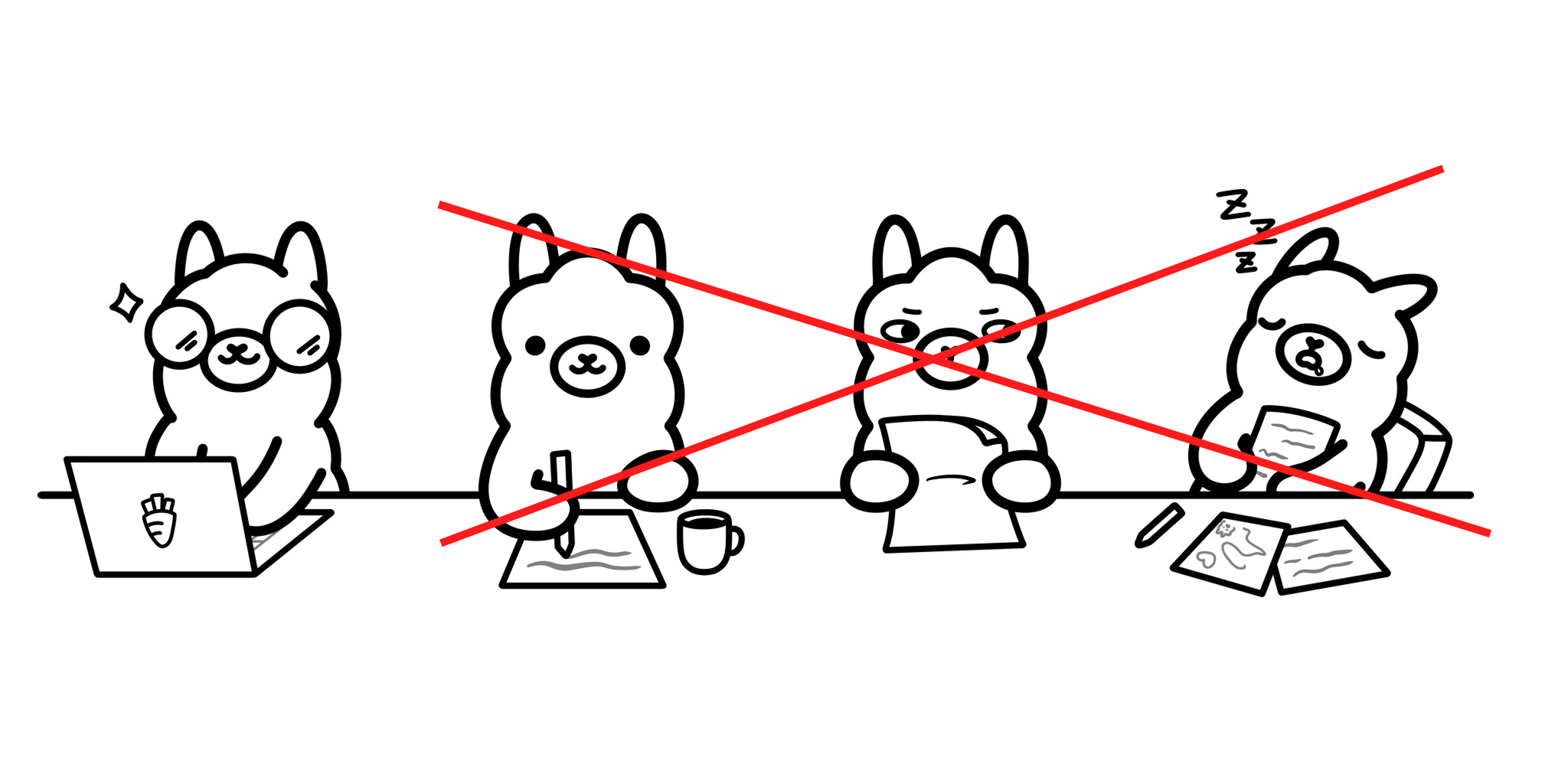
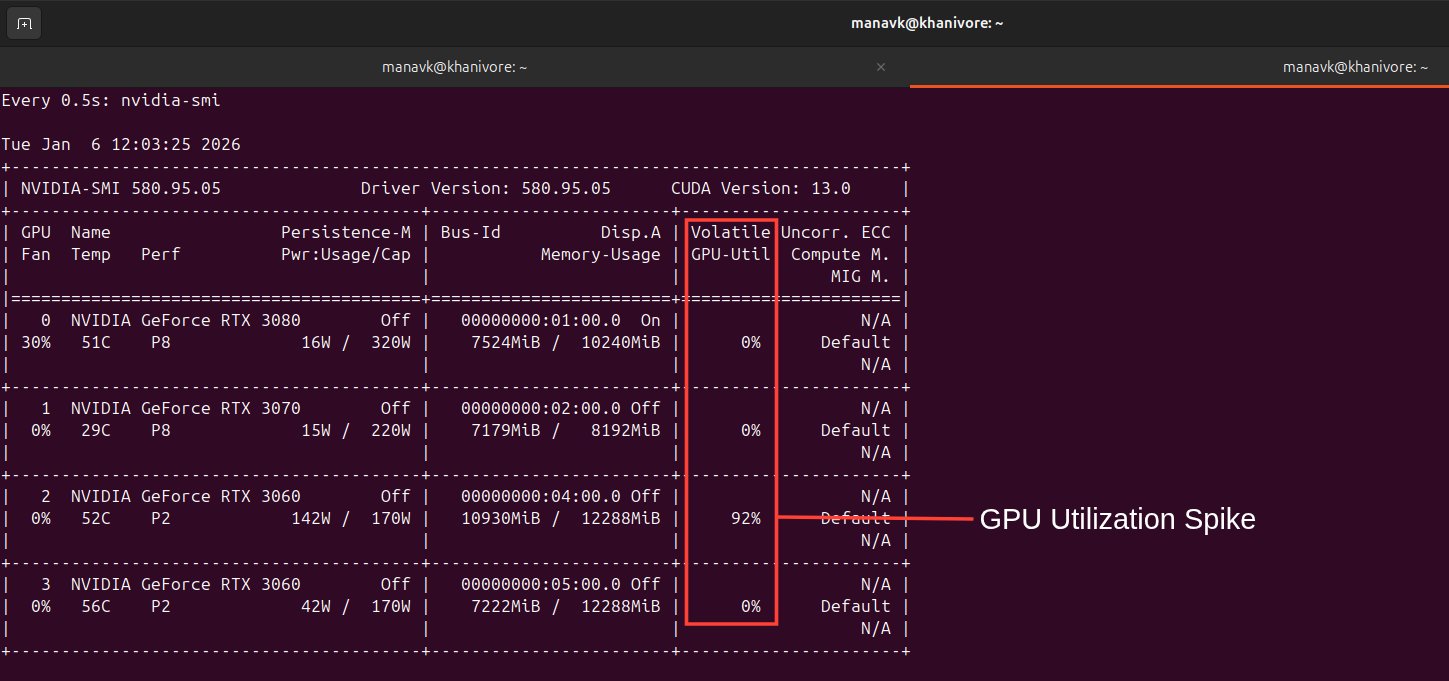
As you may infer from the graphic above, Ollama, while super simple to install and use, starts to show its flaws once you move past a single-GPU setup. My biggest issue is how it handles multi-GPU systems. While Ollama can see all my GPUs and make use of their combined VRAM, inference only runs on one GPU at a time. There are no tensor-parallelism capabilities.
You can actually come to this conclusion on your own (how I figured it out, unfortunately). For some reason, I assumed it was logical to assume Ollama would optimize for all my GPUs and automatically run TP. When I was inspecting my GPU power draw and utilization for prompts, you can see spikes in those metrics on a single card while the others sit idle.
Here’s an example running the following prompt on Gemma 3:
manavk@khanivore:~$ ollama run gemma3
>>> write me a limerick shakepseare style that is at least 5 paragraphs long
Okay, here’s a limerick, attempting to capture the spirit and length of Shakespearean verse, exceeding five paragraphs in its descriptive approach. It leans heavily into the
archaic language and contemplative tone that characterized his work.

**A Lament for a Lost Berry’s Hue**
...
With Ollama, adding more GPUs is actually counterintuitive. You can actually make things slower by adding GPUs due to things like coordination and memory overhead, even though you might have more VRAM available.
There are other problems, too. Ollama hides a lot of backend details that are important once you actually want to start looking at things like performance or memory pressure. You basically have to trust the runtime to pick optimal defaults. Ollama is great for quick local experiments, but for this project, these abstractions started to feel too constraining, which led me to look into other tools.
TensorRT-LLM and vLLM
The next logical options, for my purposes, were looking for tools that supported tensor parallelism. The 2 main ones I saw often were vLLM and Nvidia’s TensorRT-LLM. I’ll give you guys a quick breakdown on both and my interesting experiences with them.
TensorRT-LLM
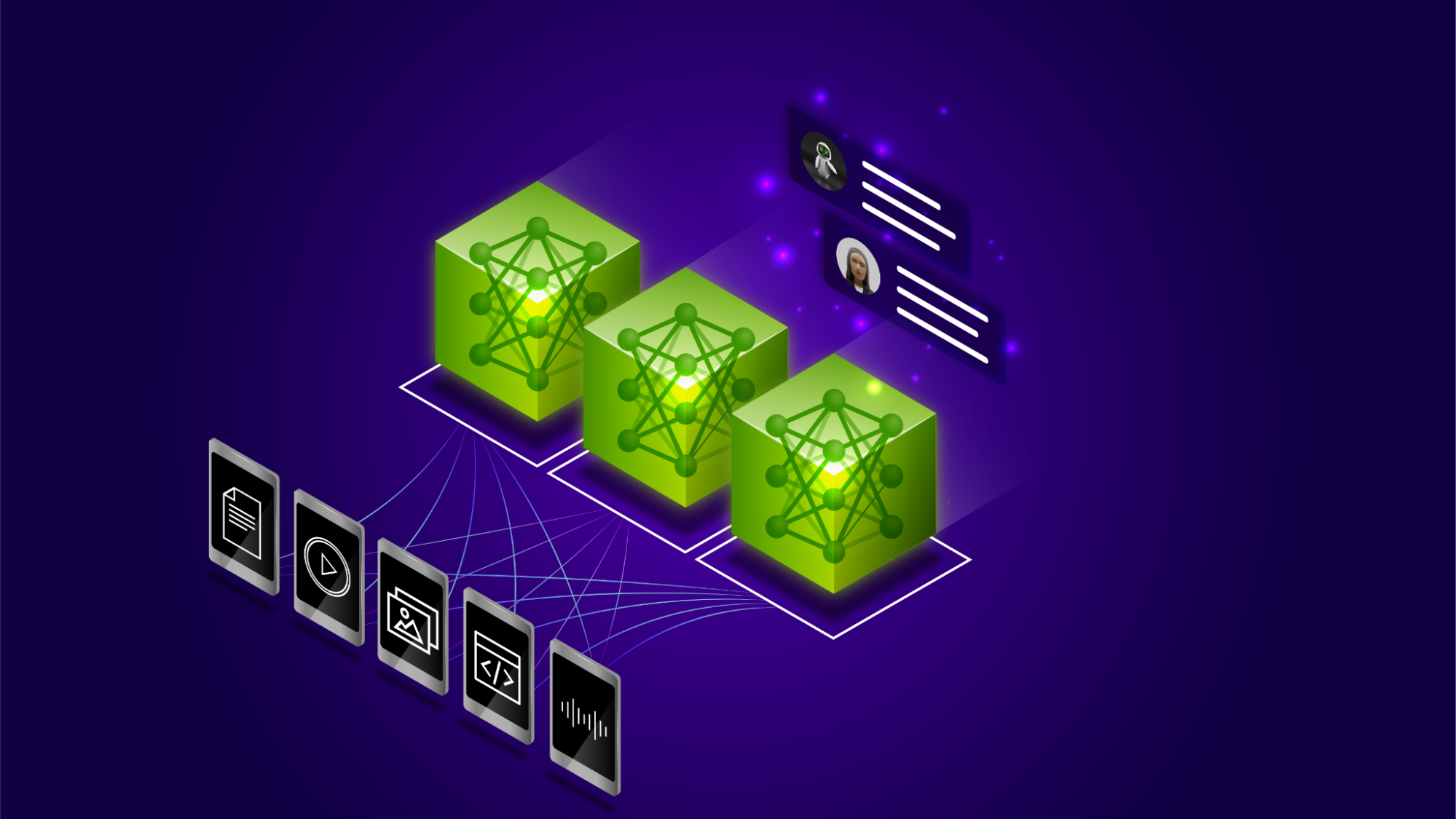
TensorRT-LLM is very different in spirit from tools like Ollama. It isn’t a toolkit that allows you to directly install and start chatting with it. This is a GPU-level inference toolkit built on top of Nvidia’s TensorRT. It is designed to turn trained LLM weights into an optimized inference engine. The workflow setting this up is considerably more involved. First, you start with a supported model (often from Hugging Face). Then you convert these weights (since these are hardware-agnostic) into TensorRT-LLM format. This allows you to configure an engine build that is tailored to your exact hardware setup. You can set precision, batch sizes, memory limits, and much more.
Once this optimized engine is built, TensorRT-LLM provides a server layer for running our inference. The compiled engine will expose generation endpoints. As you can see, setting this up is definitely more complicated, but it leads to GPU-optimized and predictable performance once everything is set up.
vLLM
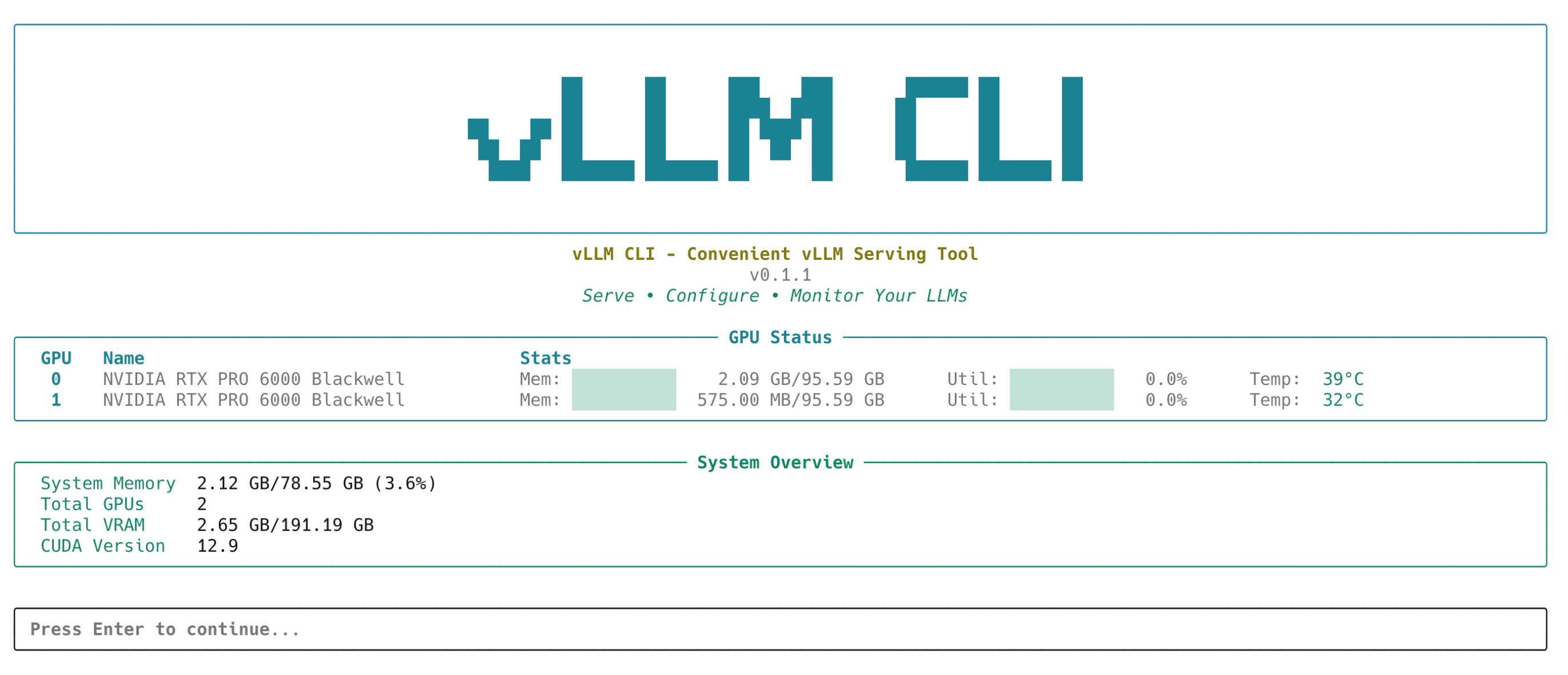
vLLM is a mixture of Ollama and TensorRT-LLM in terms of abstraction. Like Ollama, it is something you can install and run directly. Like TensorRT-LLM, it’s clearly designed for performance rather than just convenience. vLLM is an LLM inference engine built on PyTorch, designed to run large models efficiently in production-like environments.
To do this, it loads Hugging Face model weights directly and focuses mainly on executing them efficiently at inference times. The main thing vLLM provides is a custom execution engine that controls scheduling and memory usage during generation, allowing it to handle many concurrent requests.
Even though vLLM doesn’t involve a compilation step, like TensorRT-LLM, we still have a good bit of control over inference behavior. You can easily configure things like tensor parallel size, maximum sequence length, GPU memory utilization, batch limits, and request concurrency when launching a server (example below).
CUDA_DEVICE_ORDER=PCI_BUS_ID \
CUDA_VISIBLE_DEVICES=0,1 \
PYTORCH_ALLOC_CONF=expandable_segments:True,max_split_size_mb:128 \
vllm serve Qwen/Qwen2.5-7B-Instruct \
  --tensor-parallel-size 2 \
  --gpu-memory-utilization 0.85 \
  --max-num-seqs 8 \
  --max-model-len 8192 \
  --dtype bfloat16 \
  --attention-backend FLASH_ATTN \
  --enforce-eager
My Experience
![[vLLM vs TensorRT-LLM] #1. An Overall Evaluation](https://substackcdn.com/image/fetch/$s_!aBcV!,f_auto,q_auto:good,fl_progressive:steep/https%3A%2F%2Fsubstack-post-media.s3.amazonaws.com%2Fpublic%2Fimages%2F85e729bb-163d-4d9b-9683-73ed7ca0c5f0_1560x392.webp "[vLLM vs TensorRT-LLM] #1. An Overall Evaluation")
Credit: Yeonjoon Jung
For some reason, my smartass decided that even though vLLM was compatible with Open WebUI (more on this later), I should try working with TensorRT-LLM. On paper, this made complete sense: optimized inference on my NVIDIA GPUs- how could it get better? In reality, it quickly became obvious that this was the wrong decision (for now).
Even though I got things working, every small change I wanted to make, whether that was a model swap or a GPU count change, I had to rebuild the engine, which took a long time. This definitely is not a problem with TensorRT-LLM; this tool just turned out to be at a lower level of abstraction than I currently need.
After spending too much time trying to make TensorRT-LLM work, I stepped back and switched to vLLM. This was definitely the right move (for the moment) as I could easily connect vLLM models to Open WebUI, allowing me to run TP models through the open source UI. That being said, TensorRT-LLM results do look promising, so I’ll definitely look deeper once I decide to wean off of open source tooling.
Open WebUI
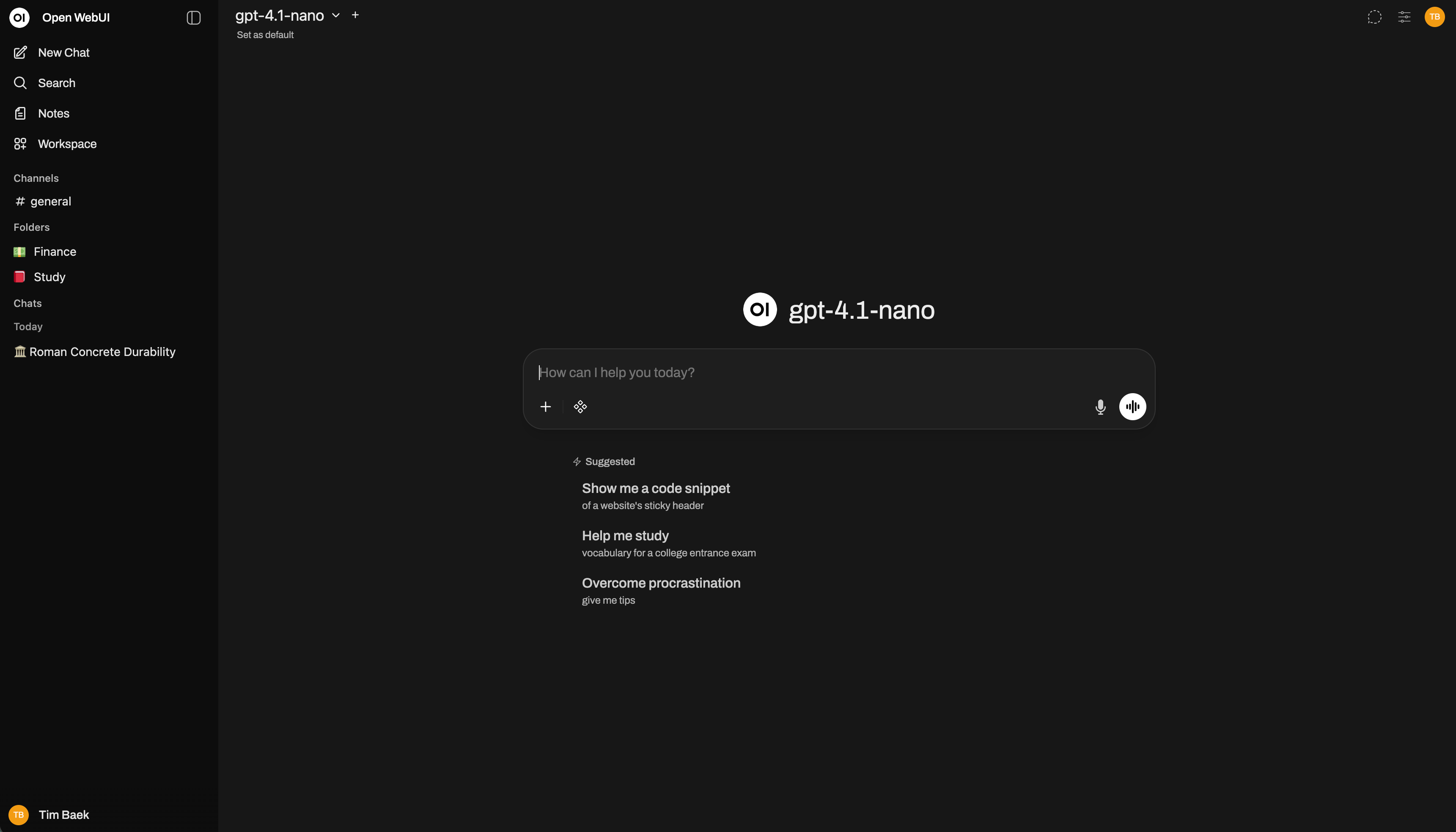
One of my main goals with this project was to replace the hosted LLM tools I use currently. To do this, I had a choice: create my own UI or use something open source. While building sounded fun, it would for sure turn into a never-ending side quest. When I did more research, I realized there were way too many parts I’d need to work on. There’s auth, chat history, model switching, file uploads, streaming responses, etc. Open WebUI already solved all of this, so it seemed foolish not to use it. It gives a ChatGPT-style interface while letting me stay local.
One cool feature that Open WebUI has is how well it sits on top of OpenAI-compatible API’s. For example, once vLLM was running, I could add the base URL directly to Open WebUI, and my vLLM models would show directly in my interface.
Closing Thoughts
Now that I have tried all these different tools, I have started using OpenWebUI with vLLM as my main inference engine behind the scenes. This setup works pretty decently for the original goal of “replacing ChatGPT”. I’ve set up Tailscale (more on this later), and I can access my UI from any of my devices, essentially accomplishing my goal.
Next, I plan to stress test my setup with larger models, higher concurrency, and longer context windows. Once I have a better understanding of the base capabilities, I’ll move on to working on better infrastructure to set up and use these tools, and even creating tools of my own.